Create Slime Mart Controls Guide
Camera, interact, UI, and placement habits that keep toppings where you put them.
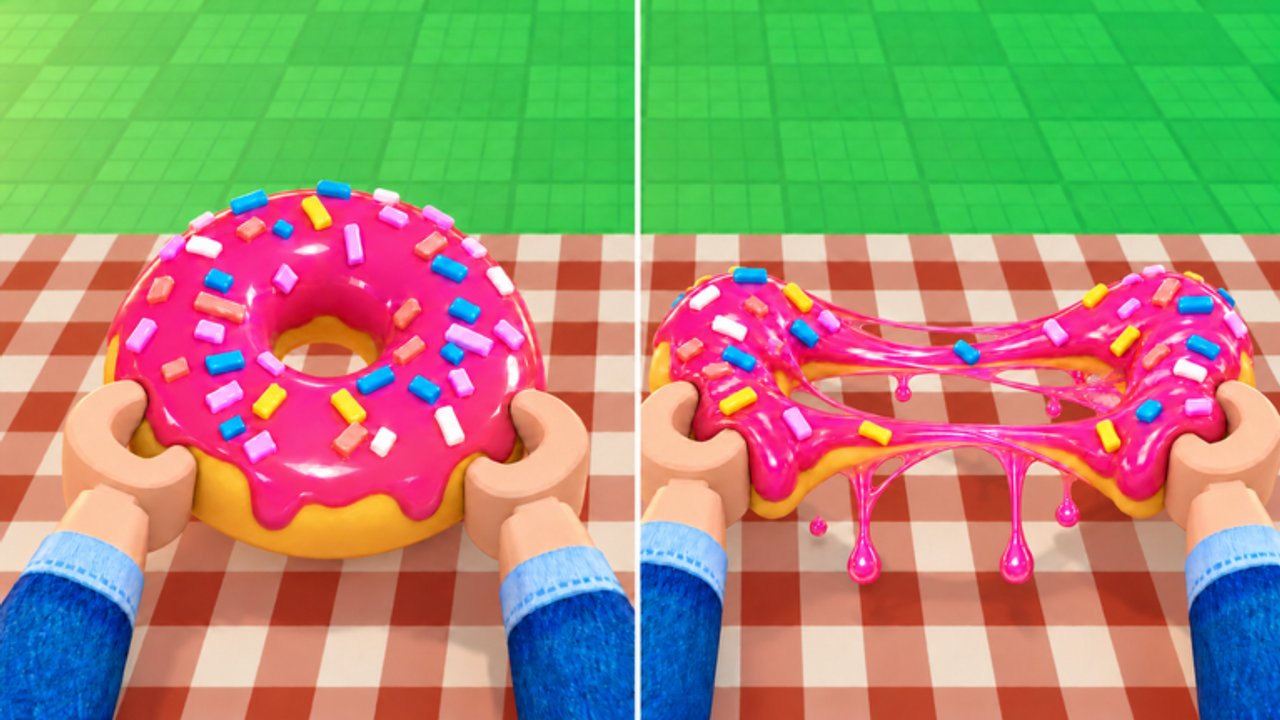
Precise hands make better slime snacks. Create Slime Mart by Courgette Fan Club asks you to open boxes, seat bases, place toppings, tweak Extras, then stretch, squish, and film — all inside a standard Roblox control shell with game-specific prompts. This page covers PC and mobile habits that matter for the mart: camera control, interaction, inventory and UI, filming gestures, and precise topping placement. Pair it with Getting Started for the first-hour path and How to Make Slime Food for recipe order.
Controls can receive small tweaks during early access (testing since 26 October 2026), so if a prompt label differs slightly in your build, follow the on-screen hint first, then use this page for technique.
Roblox baseline you still need
Create Slime Mart runs on Roblox, so the usual movement layer applies.
PC
- WASD — move your avatar around the mart, shop, and tables.
- Space — jump when you need to clear a prop or reposition.
- Mouse — look / orbit camera; left click commonly selects and interacts with prompts.
- Shift (if enabled in Roblox settings) — sprint to cross the mart faster between restocks.
- Esc — Roblox menu; useful if a UI soft-locks and you need to reset focus.
Mobile
- Dynamic thumbstick — move.
- Jump button — jump.
- Camera drag — one-finger swipe on empty space to reangle; pinch to adjust zoom when the experience allows.
- Tap — interact with nearby prompts and UI buttons.
If your device feels floaty, lower camera sensitivity in Roblox settings before blaming the game.
Camera habits for the slime table
Great creates die on bad cameras. Before placing tiny toppings:
- Stand where your avatar will not eclipse the plate.
- Drop the camera to a three-quarter view of the table, not only top-down.
- Zoom until the base fills most of the frame but still leaves margin for Extras.
- Lock your mental framing — then place toppings relative to that shot.
On PC, micro-adjust with slow mouse movement. On mobile, use short swipes; long swipes overshoot and hide the donut hole you were aiming at.
When friends join online co-op (about 10 players), call your camera side so two people are not fighting the same angle at one table. Visit etiquette tips live on Players.
Interact and table workflow
Approach boxes, tables, shop stands, and film prompts until an interact affordance appears. On PC, click or press the prompted key; on mobile, tap the button. Do not spam interact while carrying a box — double triggers sometimes cancel or reopen UI awkwardly in craft games.
Recommended interact order for a clean create:
- Claim / buy box at shop.
- Interact with a free table to open and stage.
- Select base pieces deliberately.
- Open Extras only after structure is stable.
- Trigger stretch / squish / film flows from their prompts when presentation is ready.
If nothing responds, step back one stud, re-center the camera on the object, and try again. Occlusion is a common false “broken controls” report.
Inventory and UI
Expect on-screen buttons for inventory, shop, codes, pets (after the Pets update), and social or visit features. Open one panel at a time on mobile — stacked UIs steal screen space you need for placement. Close menus before you stretch so gesture input hits the create, not a hidden button.
Codes redemption UI, when available, is covered step-by-step in How to Redeem Codes. Keep the Codes list nearby so you paste accurately.
Pets menus should stay closed while you place cheese on a pizza. Collection can wait thirty seconds; a slipped topping cannot always be undone cleanly. See the Pets Guide after your hands are steady.
Filming gestures: stretch, squish, crunch
Filming is how Coins and Subs fantasy pays off. Controls-wise:
- Trigger the stretch / squish / crunch interactions from their prompts only when the camera already frames the snack.
- Prefer slow stretch inputs so elasticity reads on recording.
- Follow with a deliberate squish for payoff; mash clicking looks accidental.
- If a crunch interaction exists for your kit, time it as a finale, not the opener.
On PC, steady mouse position while you activate gestures. On mobile, plant your non-thumb fingers so the device does not tilt mid-squish. Economy context for why these takes matter is in Earn Coins and Subs.
Precise topping placement tips
PC precision
- Orbit to a side view when stacking height; top-down lies about collisions.
- Place hero toppings first; fillers second.
- Nudge with tiny camera moves instead of giant avatar steps that shake the whole view.
- If a piece refuses to seat, remove nearby clutter, then retry — crowded tables increase mis-clicks.
Mobile precision
- Zoom closer than feels necessary before placing sprinkles or small Extras.
- Tap the piece, then tap the target zone rather than dragging across the whole plate when drag feels noisy.
- Rest the device on a table if your hands shake; slime food rewards stillness.
- After each risky placement, re-check from a second angle before committing Extras.
Shared advice
- Keep a clean crust or plate edge so silhouette stays readable on film.
- Do not chase perfect millimeter alignment — chase readable food identity.
- Undo early. Fighting a bad first sprinkle for a minute is worse than replacing it.
Accessibility and comfort settings
- Lower camera sensitivity if you overshoot toppings.
- Increase brightness if glaze and cheese blend together on your monitor.
- Use headphones in collab so restock calls and friend tips are clear.
- Take breaks — stretch/squish sessions are repetitive by design.
Troubleshooting “controls feel wrong”
| Symptom | Likely fix |
|---|---|
| Cannot interact | Re-aim camera at prompt; step closer |
| Toppings miss | Zoom in; change to side angle |
| Film gesture does nothing | Close other UI; ensure create is active |
| Camera spins wildly | Reduce sensitivity; avoid multi-touch accidents |
| Co-op chaos | Stagger tables; limit who stands in frame |
Still stuck after a patch? Check Updates for UI changes, then reseat your habits using this page.
Practice drill (five minutes)
- Join a quiet server or friend instance.
- Place only a base three times from different camera heights.
- Add five toppings as slowly as possible.
- Perform one stretch and one squish with the camera pre-framed.
- Open How to Make Slime Food and apply the same control discipline to a full recipe.
Master the inputs and Create Slime Mart becomes a presentation playground instead of a fight with your thumbs. Steady camera, deliberate interact, patient toppings, intentional film gestures — that is the control stack that feeds Coins, Subs, and proud collab clips.
Frequently Asked Questions
Quick answers to the most common questions.
Are Create Slime Mart controls different on mobile and PC?
Movement and camera use the standard Roblox patterns for each platform, but placement precision differs. Mobile needs more zoom and shorter swipes; PC benefits from slow mouse orbits and side views.
Why won’t a topping place where I tap?
Usually camera angle or clutter. Zoom in, switch to a three-quarter or side view, clear nearby pieces, and retry with smaller adjustments.
When should I open Extras or pets UI?
After the base structure is stable. Closing extra panels keeps screen space and input focus on the snack, especially on mobile.
How do I film without ruining the create?
Frame first, then trigger slow stretch and deliberate squish prompts. Avoid mashing inputs or bumping the camera mid-take.
What should I read after controls?
Use Getting Started for the full first session, then How to Make Slime Food for recipe order, and Earn Coins and Subs for why clean takes matter.